SteamVR / VRChat / SlimeVR setup
Let's launch VRC!
First check that the SlimeVR skeleton preview follows correctly when you lift a leg, bend your knees and turn. Then configure SteamVR and VRChat.
This page covers PC VRChat.
1. Get tracker outputs into SteamVR
- Start SlimeVR and SteamVR.
- Check that SlimeVR is enabled under SteamVR's Manage Add-Ons.
- Enable the tracker outputs you need in SlimeVR's SteamVR settings.
- Restart SteamVR after changing driver or output settings.
“Outputs” are the tracking points passed to games. Their count may differ from the physical Trackers you wear; focus on correct positions and movement.
See the SteamVR section of the official SlimeVR quick setup.
2. Configure VRChat
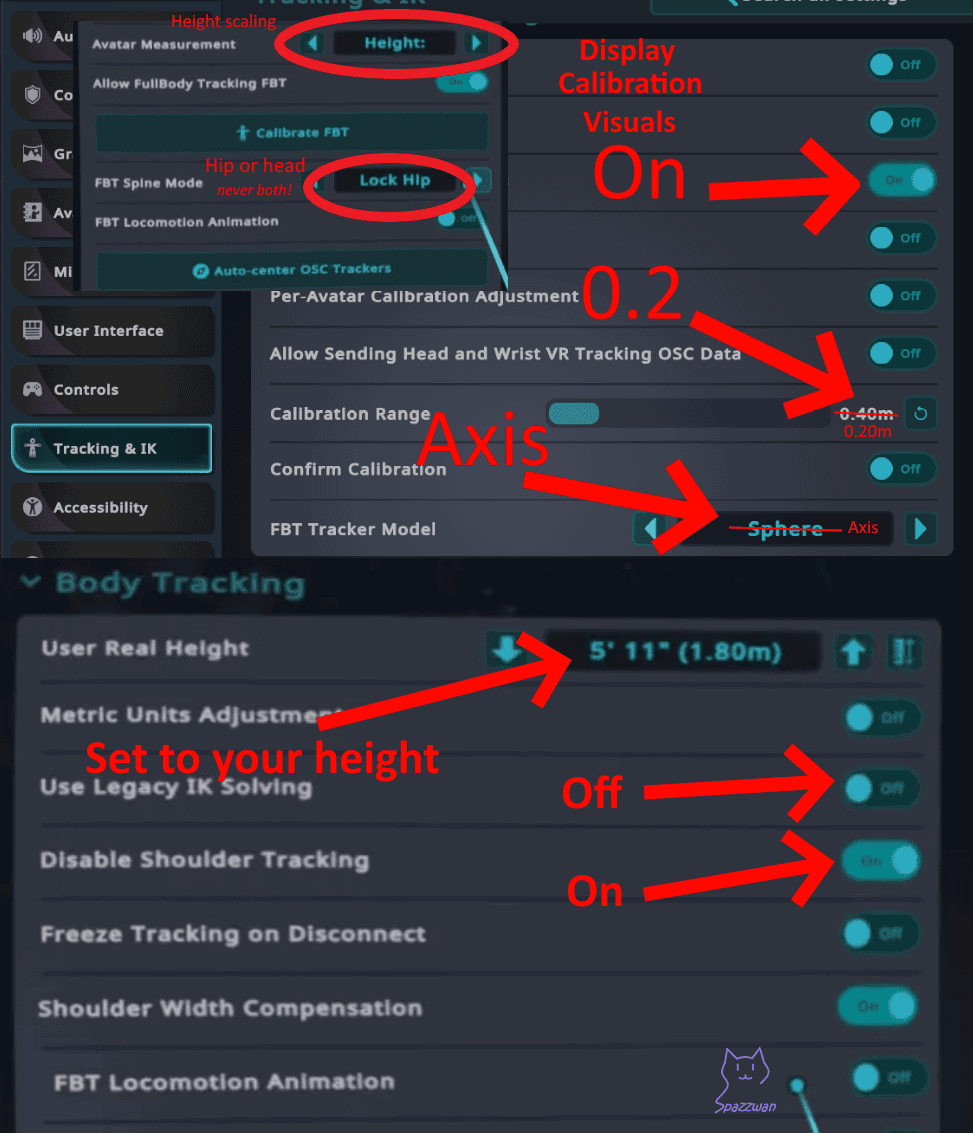
Open VRChat's Tracking & IK settings:
- User Real Height: Enter your actual height.
- Display Calibration Visuals: Enable this to see tracking markers more easily during calibration.
See SlimeVR's VRChat configuration guide.
The image below shows other suggested settings.
3. Calibrate your current avatar
- Open the VRChat Quick Menu and choose Calibrate FBT.
- Follow the pose prompts and check feet, waist and arms.
- Stand upright and look straight ahead.
- Press both controllers' Interact buttons simultaneously to confirm; these are commonly the triggers.
- Try lifting a leg, sitting and turning to check that your avatar follows naturally.
Buttons depend on your controller settings. See VRChat's official FBT guide.
SlimeVR reset vs. VRChat calibration
SlimeVR resets align the Trackers you wear, and body proportions describe your body shape. VRChat calibration aligns that tracking result with your current avatar.
Recalibrate in VRChat when you change avatars. If a Tracker moves, do a Mounting Reset in SlimeVR first, then recalibrate in the game.
Can't see Calibrate FBT?
Check for tracker outputs in SteamVR, then check SlimeVR's SteamVR settings and add-on status. Once the outputs appear, re-enter VRChat and try again.
Only one avatar looks wrong?
Try another avatar and recalibrate. Different leg lengths, body shapes and skeletons can need different alignment.
If the SlimeVR preview already tilts or slides, start with Tracking troubleshooting. If the preview looks normal and only the game looks wrong, check avatar and game calibration first.
4. Recommended SlimeVR settings
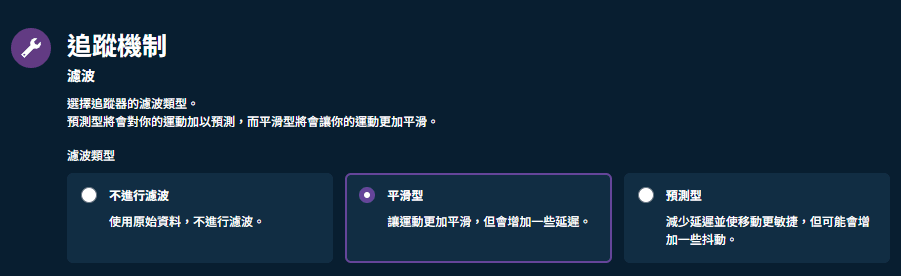
Tracking behavior
We recommend smoothing at 10–30%.
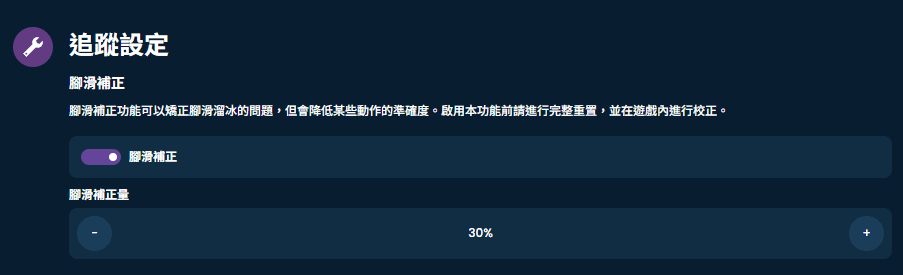
Foot-slide correction
We recommend a strength of 10–30%.
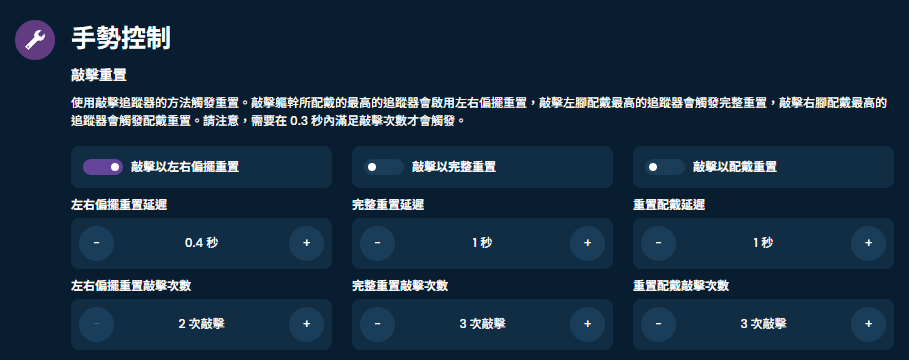
Gesture control
We recommend enabling only yaw reset. Other gestures are easier to trigger accidentally.
5. Adjusting body proportions
Fine-tuning body proportions is an advanced task and is difficult to explain in a few lines.
If needed, you can purchase our setup/tuning service (40/60 CNY).
We plan to add more guides in the future.