Installing SlimeVR
Just what the title says.
SlimeVR is the software used with Dawn Tracker. Install it first, then connect your receiver to assign body parts and configure wearing positions.
Dawn Tracker supports Windows, macOS, Linux and Android/Quest; the receiver can also connect directly to a headset. Download the latest official SlimeVR version for your device.
The installer and SteamVR steps below use Windows PC VR as an example. On a standalone headset, install SlimeVR and proceed to connecting devices; the PC SteamVR installation steps do not apply.
1. Download SlimeVR
Get the latest version from the official download page or the official releases page.
If you will use SteamVR, install and launch it once before installing SlimeVR.
2. Install the software
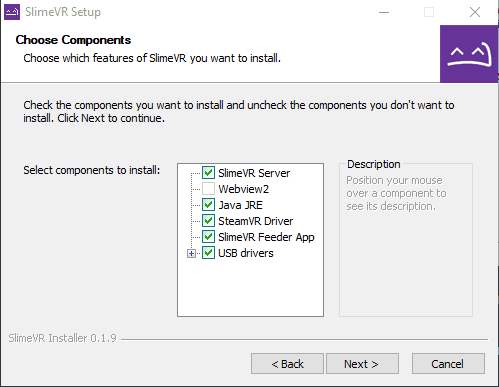
Run the installer and follow its prompts. For SteamVR, keep the default components selected, including SteamVR Driver and SlimeVR Feeder App. Usually no changes are needed.
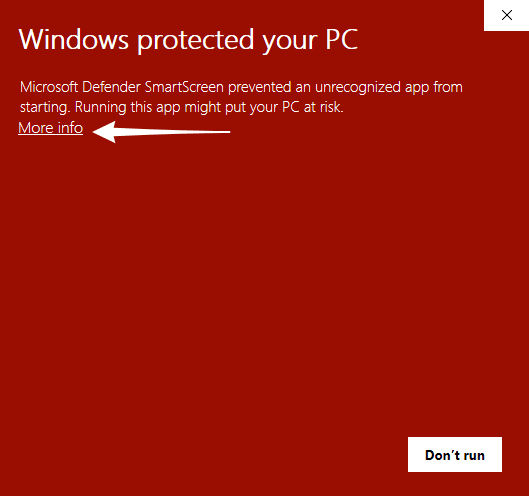
Windows protection prompt
If this prompt appears, choose More info → Run anyway.
3. Open SlimeVR and connect your devices
- Open SlimeVR Server and choose your preferred interface language.
- Connect the Dawn Tracker receiver with a USB data cable.
- Turn on your Trackers.
- Check that they appear in the SlimeVR list.
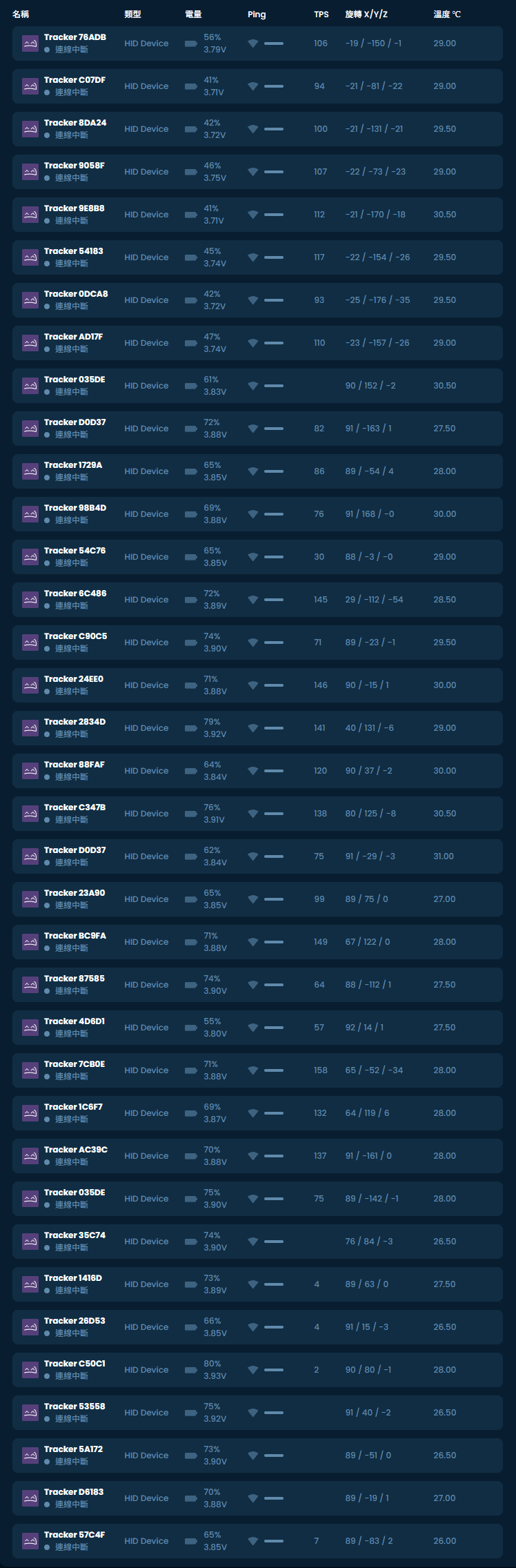
Just showing off 100 connected Trackers here—there's no special meaning to the screenshot!
Connecting through a receiver
On the Wi-Fi setup page, choose Dongle or skip. Dawn Tracker uses a dedicated receiver, so you do not need a Wi-Fi name or password.
4. Check that SlimeVR is enabled in SteamVR
Open Manage Add-Ons in SteamVR settings and check that SlimeVR is enabled. If no tracker outputs appear just after installation, restart SteamVR and try again.
See the official SlimeVR driver setup guide.
5. What next?
If the software opens but no Trackers appear, see Connection problems.
If everything works, continue to Wearing positions.
How are SlimeVR and Dawn Tracker Tools different?
| Software/tool | When to use it |
|---|---|
| SlimeVR | Everyday tracking, body-part assignments, resets, body proportions and application connections |
| Dawn OTA Update Center | Normal wireless Tracker updates, directly in your browser |
| Dawn Tracker Tools | Device management, pairing and Mini wired updates when needed |
| Dawn Tracker (WCH) flashing tool | Lite 2 v2.1 wired firmware flashing when needed |
For normal updates, use the Dawn OTA Update Center without downloading extra tools. Dawn Tracker Tools and the WCH tool are for pairing, wired service or support-assisted steps. Get them through our Discord/QQ support groups or customer support.