Body proportions and calibration
Get in sync with your avatar!
With your Trackers on, tell SlimeVR your facing direction, mounting angles and body shape. This helps lifting your legs, sitting and turning feel more natural.
Check that all Trackers are connected, assigned correctly and secured without slipping. We recommend this order:
Full Reset → Mounting Reset → Foot Mounting Reset (if you have foot Trackers) → Body proportions.
“Mounting Reset” may have a different translated label in your interface; it refers to the same function.
1. Full Reset: stand upright and face forward
- Stand naturally with your feet around shoulder-width apart.
- Let your arms rest at your sides, with your head and body facing the same direction.
- Stay still briefly and perform a Full Reset.
Think of this as telling the software, “This is my normal standing posture.” Look ahead and stay relaxed.
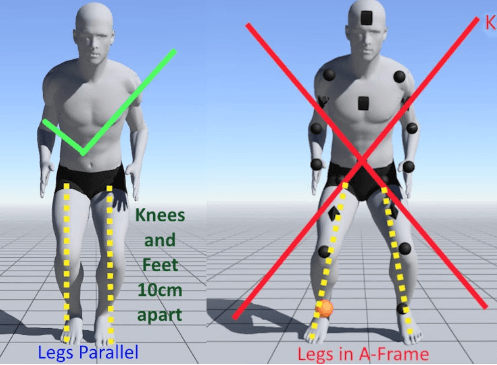
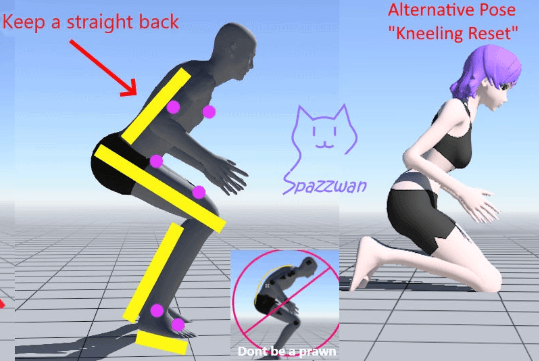
2. Mounting Reset: take a shallow skiing squat
- Bend your knees, bring your legs close together and point them in the same direction.
- Lean your upper body forward as if preparing to ski.
- Bend your arms, bring your hands near your chest and keep your upper arms close to your body.
- Hold the pose and perform a Mounting Reset.
Keep the pose symmetrical, without leaning sideways or turning your feet noticeably inward or outward. If you have upper-arm Trackers, remember to keep your arms close to your body.
This aligns the actual angles at which you are wearing your Trackers.
3. Foot Mounting Reset
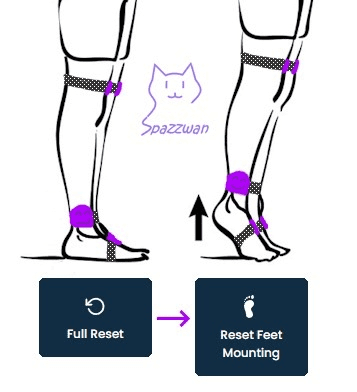
If you have Trackers assigned to both feet, follow the software's demonstration for Foot Mounting Reset after the regular Mounting Reset.
If you only have lower-leg/ankle Trackers, skip this step.
4. Set body proportions
Check your headset's floor height first: the virtual floor should be in a sensible position when you are standing on the real floor. Then open SlimeVR's Body proportions screen.
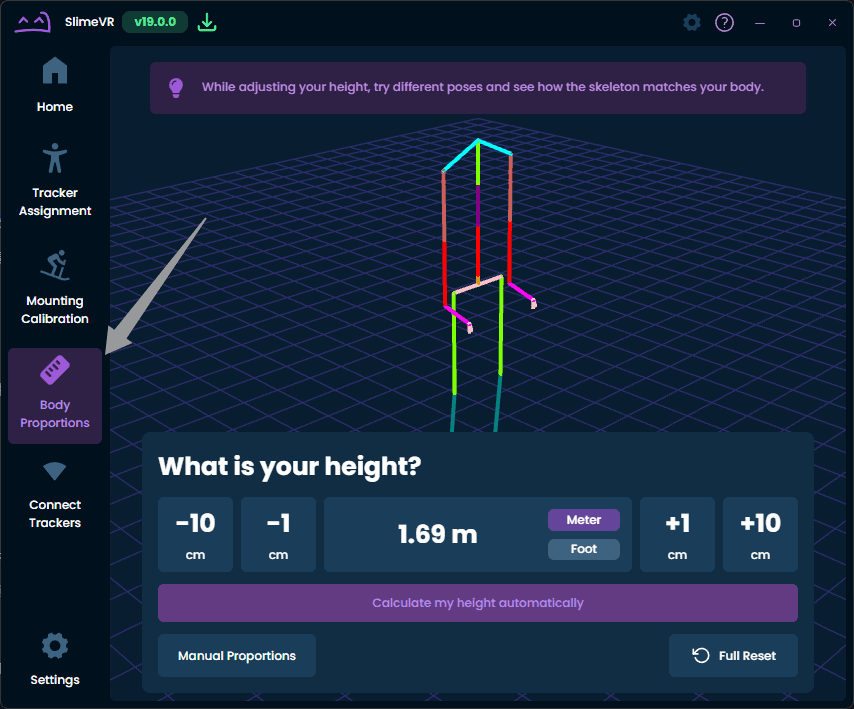
Using PC VR
Wear your headset, start SteamVR and follow the automatic setup prompts. Keep your feet in place during measurement and move your body as shown.
Without a headset/SteamVR
Start with the manual body-proportion settings. For VTubing or other uses, configure the application connection separately.
See the official SlimeVR setup guide for automatic proportion requirements.
Check the result
In the skeleton preview, stand, bend your knees, sit and lift a leg. If leg length, waist height or foot position looks wrong, adjust one proportion at a time and observe the change.
You can save proportions for the same user; they do not need to be measured at every startup.
Do I need to calibrate the sensors separately?
Not during normal use. Trackers automatically collect calibration data after being still for more than 30 seconds. Models with a magnetometer also collect data during everyday use.
Complete the wearing and body-proportion setup on this page first; there is no need to learn separate sensor calibration for your first session.
Fine-tuning your experience
If your SlimeVR version includes Continuous calibration, open its configuration under Settings and follow the demonstrated poses. Get into the pose first, then confirm and save it so the software learns the correct movement.
For a quick horizontal-direction reset, enable Settings → Gesture control → yaw reset, then double-tap your chest Tracker. See Everyday resets.
For PC VR, continue to SteamVR/VRChat setup. If the skeleton still looks wrong, work through Tracking troubleshooting.